15 min read
systemd, broken down
Linux · systemd · DevOps · Sysadmin · Toolchain · Learning
what systemd is, PID 1, units, targets, systemctl, journalctl, network targets, API filesystems. Grounded in systemd.io and Grokipedia.
This note is a foundations-first map of systemd. It is grounded in the official project site systemd.io (project definition, admin docs such as FAQ, Diagnosing Boot Problems, Network online targets, API file systems) and the overview on Grokipedia’s systemd page.
Reading order for this article: Part A (must know) → Part B (daily ops) → Part C (common gotchas) → Part D (advanced doors only).
Part A — Foundations (learn these first)
A0. Official one-breath definition
systemd.io opens with something close to this (paraphrased carefully):
- systemd is a suite of basic building blocks for a Linux system.
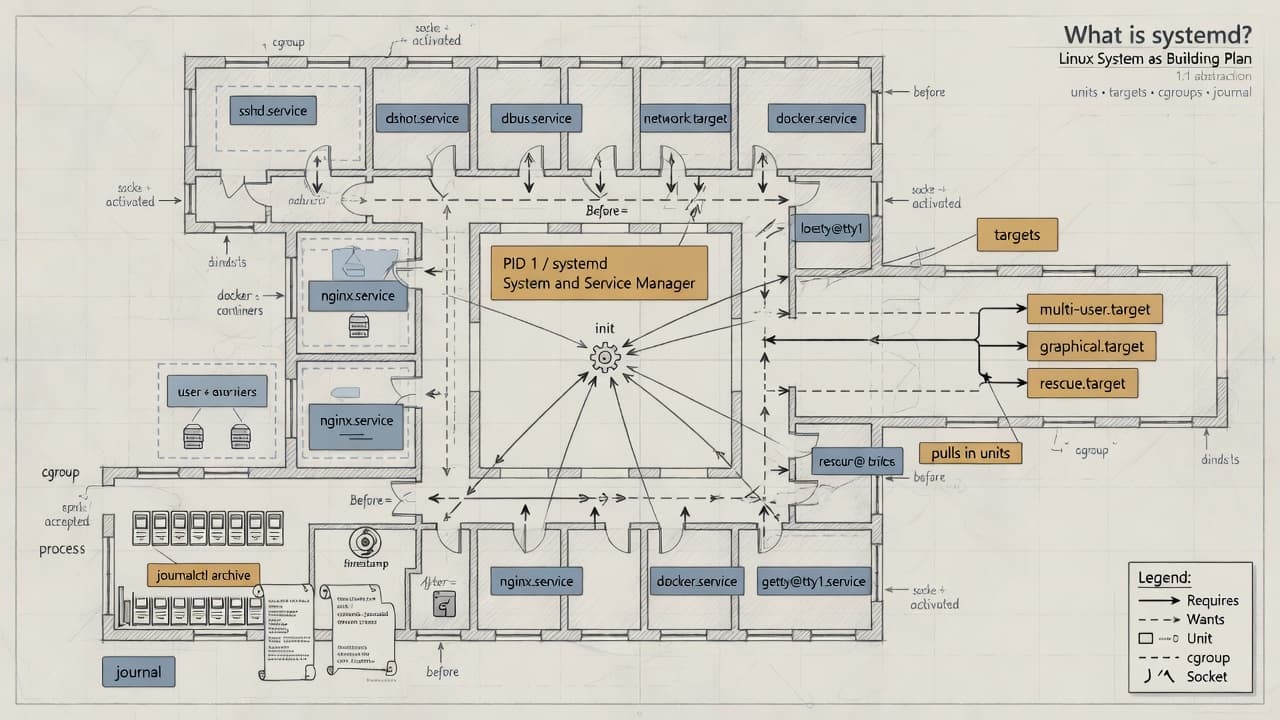
- It provides a system and service manager that runs as PID 1 and starts the rest of the system.
- It emphasizes parallelization, socket and D-Bus activation, on-demand daemon start, cgroup process tracking, mount/automount maintenance, and dependency-based service control.
- “Other parts” of the suite include logging, basic system configuration helpers (hostname, date, locale), login/session tracking, and optional daemons for network, time sync, name resolution, etc.
systemd is not only “an init script replacement”—it is PID 1 plus a coordinated suite; for foundations, master PID 1 + units + systemctl + journal first.
A1. What problem PID 1 is solving
- The kernel starts one first userspace process—historically “init.”
- That process must bring up mounts, devices, services, and keep the machine coherent.
- Old SysV-style boots often ran serial shell scripts and guessed life via PID files.
- systemd’s foundational bet (also summarized on Grokipedia): declare services as units, build a dependency graph, start independent work in parallel, track processes with cgroups, activate some work on demand.
PID 1 is the system’s process and dependency manager, not “just the first shell.”
A2. The three questions that unlock systemd
Ask these before any advanced feature:
- What is the unit? (name + type:
sshd.service,multi-user.target, …) - What state is it in? (
active,failed,inactive, … viasystemctl status) - What did it say? (journal via
journalctl -u …)
If you can answer those three under stress, you already outrank “I only know how to reboot.”
unit → status → journal is the foundation loop.
A3. Units — the central beginner object
A3.1 Definition
- A unit is something systemd knows how to start, stop, or track.
- Most units are described by a unit file (INI-style: sections and
Key=Value). - The filename suffix is the type:
.service,.timer,.socket,.target, … - Units form a graph: “start me after X,” “I want Y,” “I conflict with Z.”
A3.2 Unit types you should recognize early
| # | Type | Beginner meaning |
|---|---|---|
| 1 | service | A process or daemon recipe (ExecStart=…) |
| 2 | target | A milestone / bundle of wants (like a modern “runlevel goal”) |
| 3 | socket | A listen endpoint that can start a service on demand |
| 4 | timer | Time-based starter for another unit |
| 5 | mount / automount | Filesystem mount points systemd manages |
| 6 | path | “When this path changes, start a unit” |
| 7 | device | Device-related unit from udev world |
| 8 | swap | Swap device/file |
| 9 | slice / scope | Resource grouping / externally started process groups (learn after services) |
Live in .service + .target first; meet .timer/.socket second; leave slices/scopes until you need cgroup policy.
A3.3 Where unit files live (precedence)
- Vendor defaults:
/usr/lib/systemd/system/(or/lib/systemd/system/) — packages own these. - Administrator overrides:
/etc/systemd/system/— wins over vendor; packages should not stomp your files here. - Runtime:
/run/systemd/system/— temporary. - Drop-ins:
/etc/systemd/system/foo.service.d/*.conf— change one setting without copying the whole unit.
How to customize safely:
- Prefer a drop-in for small changes.
- Or copy vendor unit to
/etc/systemd/system/and edit the copy. - Always run
systemctl daemon-reloadafter unit file edits. - Then
restart/try-reloadthe unit as appropriate.
Never “vim the file under /usr/lib and hope”—use /etc or drop-ins.
A3.4 Three sections of a simple .service
[Unit]
Description=Example demo service
After=network-online.target
Wants=network-online.target

[Service]
Type=simple
ExecStart=/usr/local/bin/demo
Restart=on-failure

[Install]
WantedBy=multi-user.target
[Unit]— human description + relationships to other units.[Service]— how the process runs (ExecStart, type, restart policy).[Install]— what enable hooks into (usually a target’s.wants/).
Relationships / recipe / enablement — three jobs, three sections.
A3.5 Requires vs Wants vs After (say it out loud)
After=B— if both start, order me after B. Does not by itself start B.Wants=B— please also start B; if B fails, I may still continue.Requires=B— stronger coupling; B’s failure can fail me.Wants=+After=together is a common “soft dependency with order” pattern.network-online: to delay until “online,” use bothAfter=network-online.targetandWants=network-online.target.
Order is not requirement; requirement is not “network is happy.”
A4. Targets — the replacement for “runlevels”
- In Linux, run levels (or runlevels) are predefined operating states that determine which system services and processes are started or stopped after the system boots.
- Classic runlevels are obsolete as the main mental model.
- Targets carry similar goals (e.g. graphical multi-user).
- Default boot goal is controlled by
default.target(often a symlink under/etc/systemd/system/). - Common goals:
multi-user.target— multi-user, typically non-graphical full systemgraphical.target— pulls multi-user + display stackrescue.target/emergency.target— recovery modes
- Switch now (not next boot):
systemctl isolate some.target. - See active targets:
systemctl list-units --type=target.
Targets are named milestones; default.target is “where boot aims.”
Standard Runlevels (SysV Init)
Traditional Linux systems (using SysV init) define seven runlevels, numbered 0 to 6:
- Runlevel 0 (Halt): Shuts down the system safely.
- Runlevel 1 (Single-User Mode): A maintenance mode for administrative tasks. No networking is active, and only the root user can log in.
- Runlevel 2 (Multi-User, No Network): Allows multiple users to log in but typically does not start network services (behavior varies by distribution).
- Runlevel 3 (Multi-User with Networking): The standard mode for servers. It provides a full multi-user environment with networking enabled but uses a command-line interface (CLI) only.
- Runlevel 4 (User-Defined): Unused by default; available for custom configurations.
- Runlevel 5 (Multi-User with GUI): The standard mode for desktop workstations. It includes everything in runlevel 3 plus a graphical user interface (GUI) and display manager.
- Runlevel 6 (Reboot): Restarts the system.
Runlevels vs. Systemd Targets
Modern Linux distributions (like Ubuntu, Fedora, and RHEL) use systemd instead of the traditional SysV init. In systemd, runlevels are replaced by targets, which offer more flexibility and parallel service startup. However, systemd maintains compatibility by mapping runlevels to specific targets:
| Runlevel | Systemd Target | Description |
|---|---|---|
| 0 | poweroff.target | Shutdown |
| 1 | rescue.target | Single-user / Rescue mode |
| 2, 3, 4 | multi-user.target | Multi-user text mode (Server standard) |
| 5 | graphical.target | Multi-user GUI mode (Desktop standard) |
| 6 | reboot.target | Reboot |
A5. Boot story you can narrate
You do not need every early-boot unit. Narrate this sequence:
- Firmware/bootloader loads kernel (+ initrd as configured).
- Kernel starts userspace; systemd becomes PID 1.
- systemd mounts API filesystems early (
proc,sys,dev,run, …)—see A6. - systemd reaches early targets (local FS, sockets, basic system…).
- Services start as dependencies allow, often in parallel.
- Machine approaches
multi-user.targetorgraphical.target. - Some units stay inactive until activation (socket/timer/path…).
The illustrative boot log on systemd.io (“Reached target …”, “Started …”) is exactly this story in console form.
Boot = activate a graph until a target is satisfied.
A6. API file systems systemd mounts early
These are not “mystery disks.” They are kernel/userspace APIs that look like mounts:
/sys— devices, drivers, kernel info/proc— processes, kernel settings/dev— device nodes/run— early runtime sockets/files (userspace)/tmp— often volatile temp (may be tmpfs)/sys/fs/cgroup— control group hierarchy- plus other special mounts (
/dev/shm,/dev/pts, debug/securityfs variants, …)
Facts that save confusion:
- They generally do not appear in
/etc/fstabby default. - systemd mounts them early because software expects them.
- You may list them in
fstabto change options (e.g./tmpsize). - Some can be masked to disable auto-mount (not all—see the doc’s “(X)” set).
- “Weird mounts in
mountoutput” are often these APIs, not a broken fstab.
API mounts are interfaces; don’t “clean them up” like junk folders.
A7. cgroups in one foundation sentence
- Linux cgroups group processes for accounting and limits.
- systemd puts services in cgroups so “the service” is a tree, not a lonely PID file.
- That is how systemd knows which processes belong to a unit (also why
pscan show cgroup columns). - Resource limits (
MemoryMax=,CPUQuota=, …) attach here—learn limits after start/stop/status.
cgroups answer: “which processes are this service?”
Part B — Daily operations (still foundations)
B1. systemctl
Learn in this order:
systemctl status UNIT— loaded? active? failed? recent log linessystemctl start|stop|restart UNIT— runtimesystemctl reload UNIT— reload config if the unit supports itsystemctl enable|disable UNIT— boot persistencesystemctl is-enabled UNIT/is-active UNIT— scripting-friendly answerssystemctl daemon-reload— after unit file changessystemctl list-units --failed— what is on firesystemctl reset-failed— clear failed markers after fixingsystemctl cat UNIT— show the unit text systemd is usingsystemctl show UNIT -p Fragments -p DropInPaths— where config came from (when debugging overrides)
status → logs → fix unit/drop-in → daemon-reload → restart → status again.
B2. Three levels of “off” (concept you will meet)
- stop — not running now
- disable — not started as part of normal boot wants
- mask — symlink to
/dev/null; activation is blocked hard
stop ≠ disable ≠ mask; use the weakest tool that solves the problem.
B3. Journal foundations
- Services’ stdout/stderr commonly go to the journal, not your SSH terminal.
- That is why
systemctl startfailures say “see system journal and systemctl status.” journalctl -u UNIT— unit-centric reading.journalctl -b— this boot;-b -1previous boot.journalctl -f— follow.journalctl -p err— priority filter.journalctl --since "10 min ago"— time window.journalctl --full— avoid over-truncation in some views.- Persistence depends on setup (
/var/log/journalvs runtime-only under/run). - Text log stacks (rsyslog, etc.) may still exist; journal can forward—know which path your distro emphasizes.
No log on your TTY does not mean silence—check the journal.
B4. systemd-analyze — boot performance basics
systemd-analyze/time— coarse timing of boot phases.systemd-analyze blame— which units took long.systemd-analyze critical-chain— what sat on the critical path.
Use these when the question is “why is boot slow?”, not when a single service misbehaves (then status+journal first).
blame lists slow units; critical-chain explains the bottleneck path.
B5. Network targets
Facts:
network-pre.target— order firewall-like work before network configuration begins; passive; pull it in only if needed.network.target— “network management stack has been started”; does not mean “interfaces have IPs.” Mainly useful so shutdown order is clean (After=network.target⇒ stop before network tears down).network-online.target— actively means “network is up” as defined by the network manager’s wait service; can delay boot (default wait timeout discussed in the docs—often on the order of ~90s).- Client-ish things that need connectivity may
Wants=+After=network-online.target. - Server software often should not liberally require online—local listen can work earlier; dynamic network is normal.
- “Up” is implemented by units like
NetworkManager-wait-online.serviceorsystemd-networkd-wait-online.service—whichever stack you use. - Check:
systemctl is-enabled NetworkManager-wait-online.service systemd-networkd-wait-online.service
network.target ≠ online; network-online.target is a deliberate, sometimes expensive, sync point.
B6. Per-user systemd
- System instance: machine-wide services.
- User instance:
systemctl --userfor user units. - User manager may not exist on minimal SSH-only sessions.
loginctl enable-linger USERkeeps a user manager without interactive login (headless pattern).- Needs runtime dir / user bus pieces; “Failed to connect to bus” is often session setup, not your unit syntax.
Learn system services first; add --user when you need user-level timers/services.
Part C — Foundation troubleshooting
C1. Stuck boot — numbered triage
- Remove quiet boot flags (
quiet,rhgb) to see messages. - Decide: hang before systemd messages, or after “Welcome… / Starting… / [ OK ] Started…”
- Wait up to several minutes—some units time out before boot continues.
- Try other VTs (Ctrl+Alt+F#) if display manager is the broken piece.
- If you get a shell:
journalctl -b,systemctl list-jobs,systemctl --failed. - Rescue: kernel cmdline
systemd.unit=rescue.target(or1). - Emergency:
systemd.unit=emergency.targetoremergency; remount root RW if needed:mount -o remount,rw /. - Nuclear userspace:
init=/bin/sh(may need to remount RW; libraries must be intact). - Debug shell early:
systemctl enable debug-shell.serviceor cmdlinesystemd.debug_shell=1→ often tty9; disable after debugging (security). - Kernel requirements note from the doc: populated
/dev(devtmpfs), cgroups support—embedded builders hit this.
See messages → get a shell → journal + list-jobs → rescue/emergency ladder.
C2. Failed service
systemctl start foo.servicefails with a generic job error—expected; output is not your SSH tty.systemctl status foo.service— Active state, Result, Exec exit code, snippet of logs.journalctl -u foo.service -b --no-pager— fuller story.- Fix config/binary;
daemon-reloadif unit files changed; restart; re-check status. - If “ordered after network but still too early,” re-read network targets.
status + journal beat guessing; exit codes live on the Exec line.
C3. Which service owns a process?
pswith cgroup column, or inspect/proc/PID/cgroup.- This is how “who spawned this?” becomes answerable without PID file archaeology.
Ownership is cgroup identity under systemd.
Part D — Pocket distillations
| # | Distillation |
|---|---|
| 1 | systemd = PID 1 service manager + suite of building blocks. |
| 2 | Work is described as units in a dependency graph. |
| 3 | Targets are milestones; runlevels are legacy language. |
| 4 | After= ≠ Wants=/Requires=. |
| 5 | Customize under /etc, not by forever editing /usr/lib. |
| 6 | After unit edits: daemon-reload, then restart as needed. |
| 7 | status → journal → fix is the daily loop. |
| 8 | stop / disable / mask are different strengths of “off.” |
| 9 | Logs often live in the journal, not the invoking terminal. |
| 10 | network.target ≠ online; use network-online.target only when you truly need it. |
| 11 | Early API mounts (proc/sys/dev/run/…) are normal. |
| 12 | cgroups define the process set of a service. |
| 13 | Rescue/emergency/debug-shell are recovery tools, not daily mode. |
| 14 | Confirm reality with systemctl --version on each host class (laptop vs CI image). |
Part E — Minimal lab
# 1) PID 1 identity
ps -p 1 -o pid,comm

# 2) Default goal
systemctl get-default

# 3) Active targets
systemctl list-units --type=target --no-pager | head

# 4) A real unit (name varies by distro)
systemctl status ssh.service || systemctl status sshd.service

# 5) Its journal
journalctl -u ssh.service -n 30 --no-pager 2>/dev/null \
  || journalctl -u sshd.service -n 30 --no-pager

# 6) Failed units
systemctl --failed

# 7) Boot slow units (if curious)
systemd-analyze blame 2>/dev/null | head

# 8) Network online waiters (which stack?)
systemctl is-enabled NetworkManager-wait-online.service \
  systemd-networkd-wait-online.service 2>/dev/null
If this lab feels natural, foundations are landing.
Part F — Advanced doors (do not start here)
Only after A–C feel boring, open these from systemd.io when you need them:
- Socket activation details & portable services
- systemd-boot / UKI / measured boot / TPM topics
- Credentials, factory reset, image building (mkosi)
- Cgroup delegation for containers
- Homed / user records
- Full sandboxing directives catalog (
ProtectSystem=, …) - Philosophical debates (modularity vs suite)—context, not day-1 ops
Advanced pages exist so foundations stay small; visit them with a concrete problem, not FOMO.
Closing
systemd becomes learnable when you refuse to swallow the whole suite at once. Start from the official spine—PID 1 starts the rest of the system—then master units, targets, systemctl, journalctl, and the few targets that confuse everyone (network-online).
For narrative history and debate map, Grokipedia’s systemd page remains a useful overview. For project-authored definitions and admin docs, start at systemd.io and the linked FAQ/debugging/network-online/API-FS pages—then deepen with man pages (systemd.unit, systemd.special, systemctl, journalctl) when a real unit forces the next question.